
If you’re installing a new indicator or an update to an indicator, NinjaTrader sometimes gives you an error about duplicate names or a similar error. For example, you may see something like this:
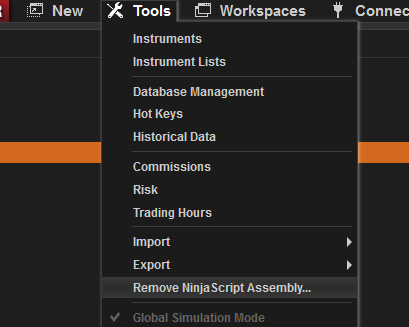
The first thing to try when this occurs is to first remove the old version of the indicator you're trying to install, using the Tools/Remove Ninjascript Assembly menu choice, as shown here, and follow the prompts.
And then try reinstalling the indicator. If that doesn't resolve the issue when you try to reinstall, the problem may be a little more challenging to resolve. We believe this error may be caused by Microsoft OneDrive competing with the NinjaTrader 8 program, both of which are simultaneously trying to access the Documents folder in new and even older PCs. If you know OneDrive is backing up your Documents folder, or you're not sure, it's worth reviewing the details at this link and, if you're a NinjaTrader user, considering preventing OneDrive from backing up your Documents folder. You may continue to experience issues until the core issue is resolved. The following solution may work temporarily for you, but you may still experience other issues if OneDrive continues to conflict with your NinjaTrader installation.
Manually moving the files into the My Documents NT 8 folder
The first thing to try is to manually install the files in the indicator zip file. Please read the following description on how to do this, and optionally watch the short video that demonstrates the steps.
First, close NinjaTrader. Then manually unzip the zip file, and drag the new files from the uncompressed zip file into the correct folder in your My Documents folder (do NOT move it to the Program Files folder). To do this, locate the .zip file you downloaded. Right-click on the file and select Extract all.... Allow the zip file to be expanded. Find the .cs and .dll files in the expanded file folder. Drag both of those into your Documents / NinjaTrader 8 / bin / Custom directory. Restart NinjaTrader 8, and your indicator should be available.
The following video demonstrates how to unzip and move the files to the NT8 folder in your My Documents folder structure. If following this approach doesn't allow you access to the indicator, try the steps provided in the next section.
Note: If you've installed one of the special Live Trading Room (LTR) Bundles that contain several BCT indicators in a single installation, see the final paragraph of this article.
Removing Previous Installations
If the manual procedure doesn't work, then you may need to remove the old version of the code before installing the new one.
To remove an old indicator, open the NinjaTrader Control Center (the NinjaTrader primary control window) and select Tools / Remove NinjaScript Assembly… as shown here:
A dialog box will appear with a list of your installed indicators. Select the indicator that you want to remove from NinjaTrader, and then select the Remove button, as shown here:
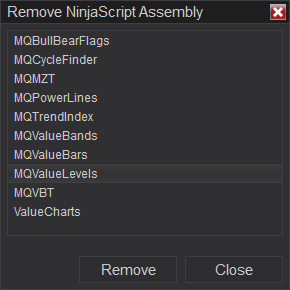
NinjaTrader will remove that indicator and its associated code. You’ll see a confirmation dialog, which you can close, and then you may close the Remove NinjaScript Assembly window. You can now install the new update or new indicator.
Note that when you do this, you may affect any indicator-specific templates that were added for the old indicator, so you may need to define those again. Sometimes the order of plots change in an indicator update, and in that case, the old template won’t work properly with the new version. So if the new version looks like something is amiss, use the "reset" function of the template to have it reset back to default, then adjust it as needed.
If removing the indicator and reinstalling doesn't work
If you removed the indicator and then reinstalled it, and you're still getting a duplicate name error, then it's likely related to internal coding issues. This can occur when you're installing multiple indicators in a single .zip file, also called a bundle. If you install the individual versions of your indicator(s) rather than using a bundle, you may avoid the error. The solution for this usually involves identifying and removing the indicators that are creating the conflict, usually in the custom indicator directories within the NinjaTrader user directory. Contact BCT support at support@basecamptrading.com, and we'll provide further assistance to correct the issue.
If you would prefer to try to resolve this yourself, you can follow the steps in the following link. The approach would be to move all of your 3rd-party .cs and .dll files into a separate folder, then recompile one of NinjaTrader's provided indicators. If you don't get an error, add one of the indicators you temporarily removed by putting it back in the original directory, and then recompile the same indicator you compiled the first time (NT checks all indicators when you compile any one of them). If there's no error, move on to the next one, and so on, until you find one that fails. The one that fails may be the culprit. These steps are detailed at this link.
-
Comments
0 comments
Article is closed for comments.